 Sparrow
How to use Sparrow: a step-by-step guide for live calls and interviews
Set up Sparrow on macOS or Windows, add your resume, get live answers during a call, solve coding questions from your screen and review everything afterwards.
Sparrow is a small desktop app that listens to a conversation, notices when someone asks you something and writes an answer you can say in your own words, within moments of the question. This guide walks through a real session from start to finish. Every screenshot is the actual app, on a Mac, with sample data.
Before you start
- A Mac with Apple silicon on macOS 14 or later, or a 64-bit Windows 10 (2004+) or Windows 11 PC.
- Any call app: Zoom, Google Meet, Microsoft Teams, Webex, Slack or a phone call on your computer.
- Headphones, if Sparrow will listen to both the call and your microphone.
- Your resume and the job description or meeting notes, if you have them.
You don’t need an account. Each computer gets 20 free minutes, which is enough to try a full practice round.
1. Install Sparrow
Download Sparrow for your computer. On a Mac, drag it into Applications and open it. If macOS says it can’t verify the developer, choose Open Anyway in System Settings → Privacy & Security. On Windows, extract the ZIP and open Sparrow.exe; if SmartScreen appears, choose More info → Run anyway.
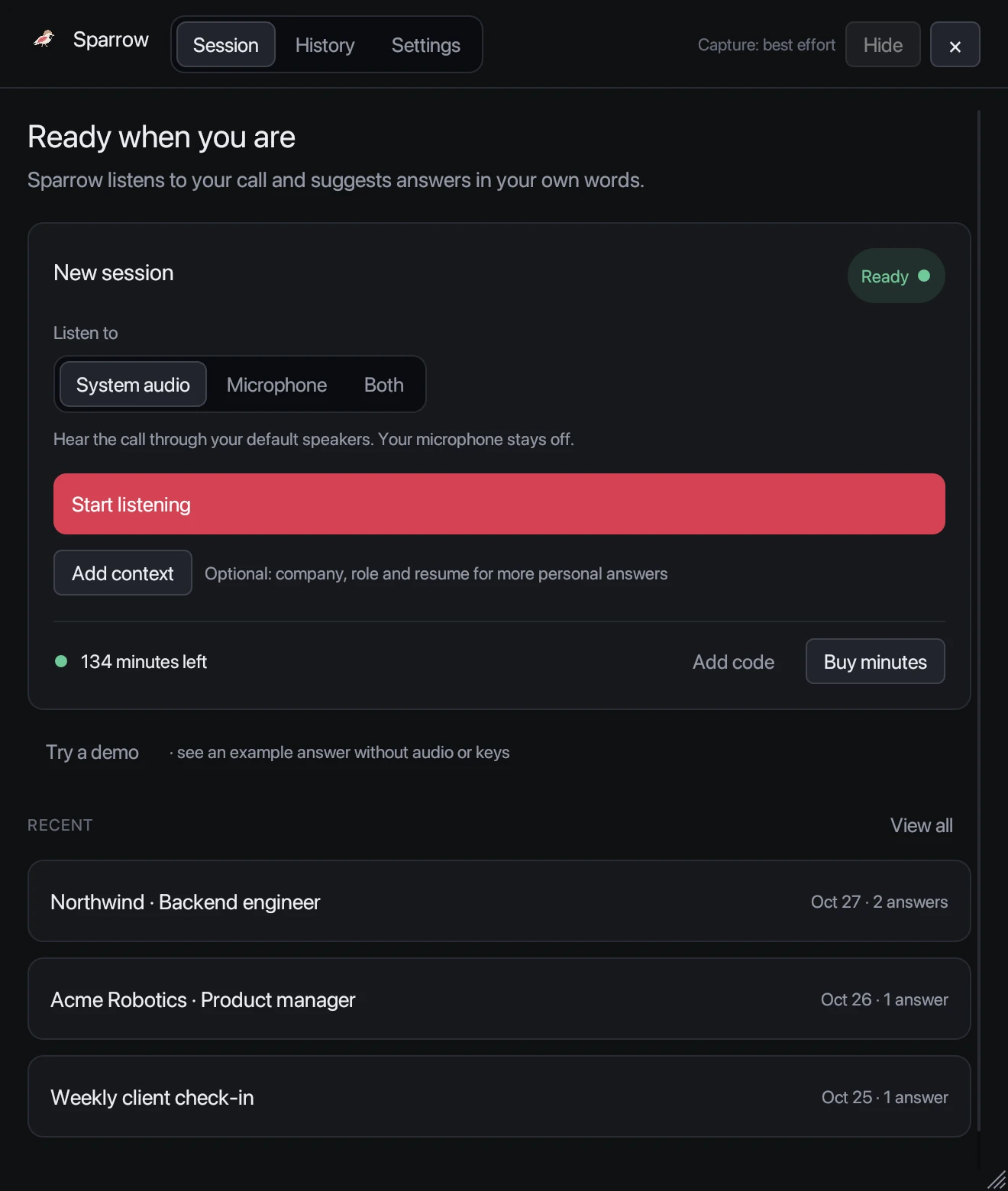
Sparrow opens as one compact window. It doesn’t add a Dock or taskbar icon, so learn one shortcut now: Cmd+Shift+Space on a Mac or Ctrl+Shift+Space on Windows hides and shows it from anywhere.
Not ready to use your minutes? Press Try a demo to see sample answers without audio or internet.
2. Add context and your resume
Answers are far better when Sparrow knows who you are and what the conversation is about. Press Add context:
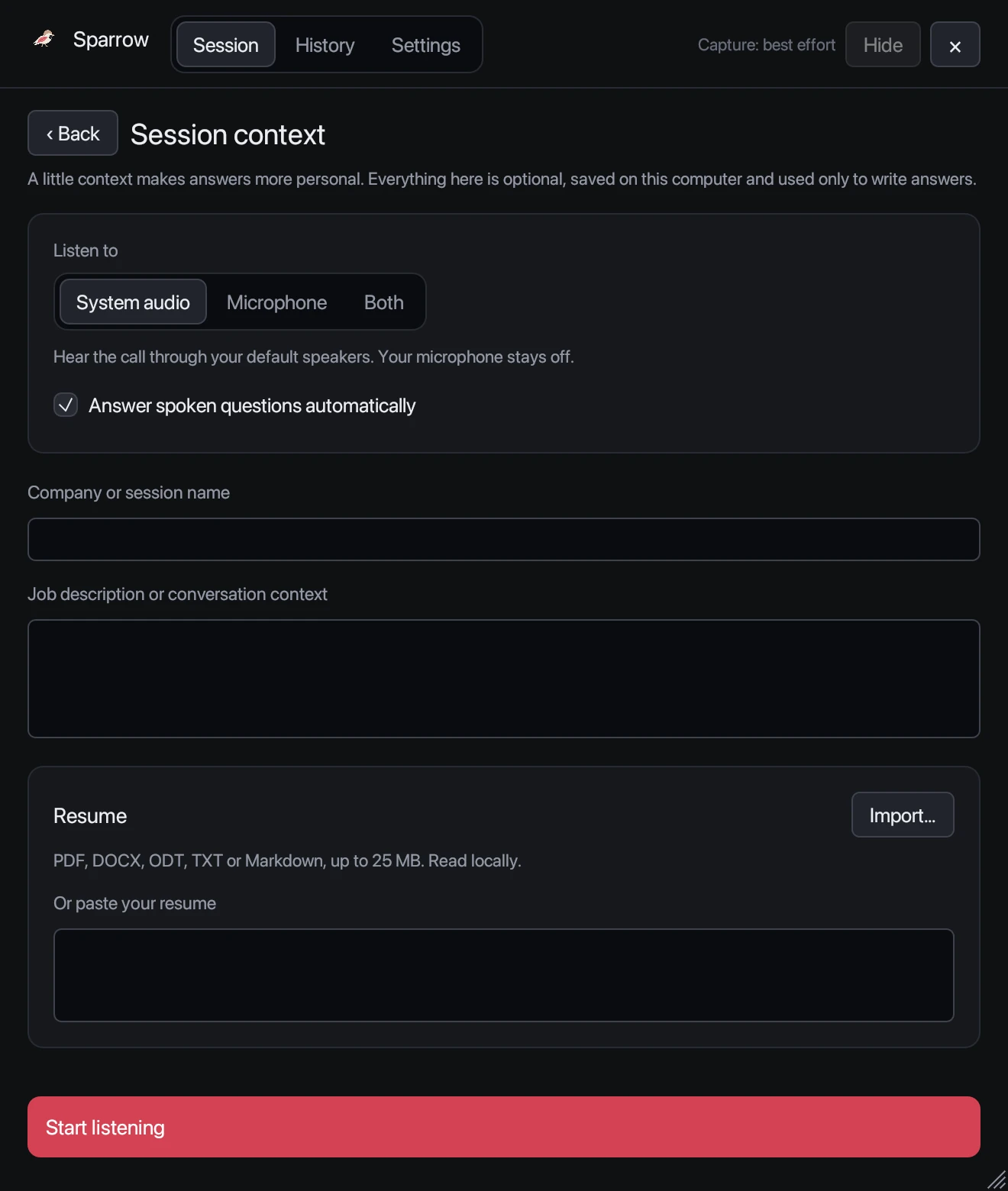
- Company or session name: for example “Northwind · Backend engineer”. It also labels the session in History.
- Job description or conversation context: paste the job posting, the agenda, or what you know about the client.
- Resume: import a PDF, Word (DOCX), ODT, text or Markdown file, or paste it. Sparrow reads it on your computer and uses it to give answers with your real experience.
Leave Answer spoken questions automatically on for your first session.
3. Start listening
Pick what Sparrow should hear under Listen to:
- System audio for video calls. Sparrow hears the other people; your microphone stays off.
- Microphone for in-person conversations or practising out loud.
- Both to transcribe everyone. Wear headphones to avoid echo.
Join your call, then press Start listening. The first time, your computer asks for permission to capture audio; on a Mac it’s Screen & System Audio Recording. Your minutes only count from this moment until you end the session.
4. Read and use the answers
When someone asks a question, Sparrow quotes it and starts writing the answer immediately. Answers are in the first person, short and ready to say, with the key points as bullets you can glance at.
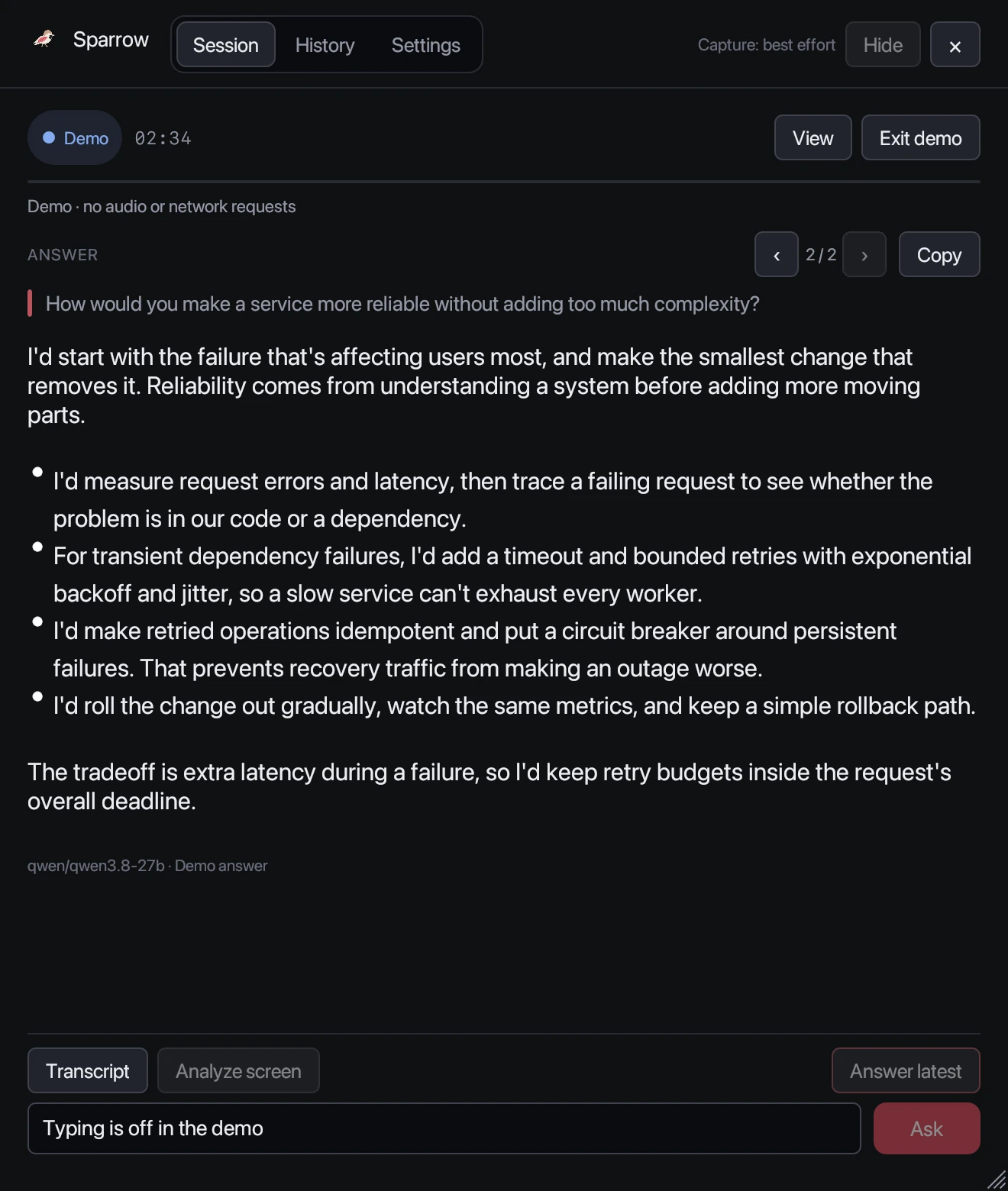
- Didn’t catch a question? Press Answer latest or Cmd/Ctrl+Shift+Enter. It answers whatever was just said, even words still being transcribed.
- Need a follow-up? Type into the box at the bottom, such as “give a shorter version” or “use the payments project from my resume”, and press Enter.
- Going back: Cmd/Ctrl+[ and Cmd/Ctrl+] step through earlier answers.
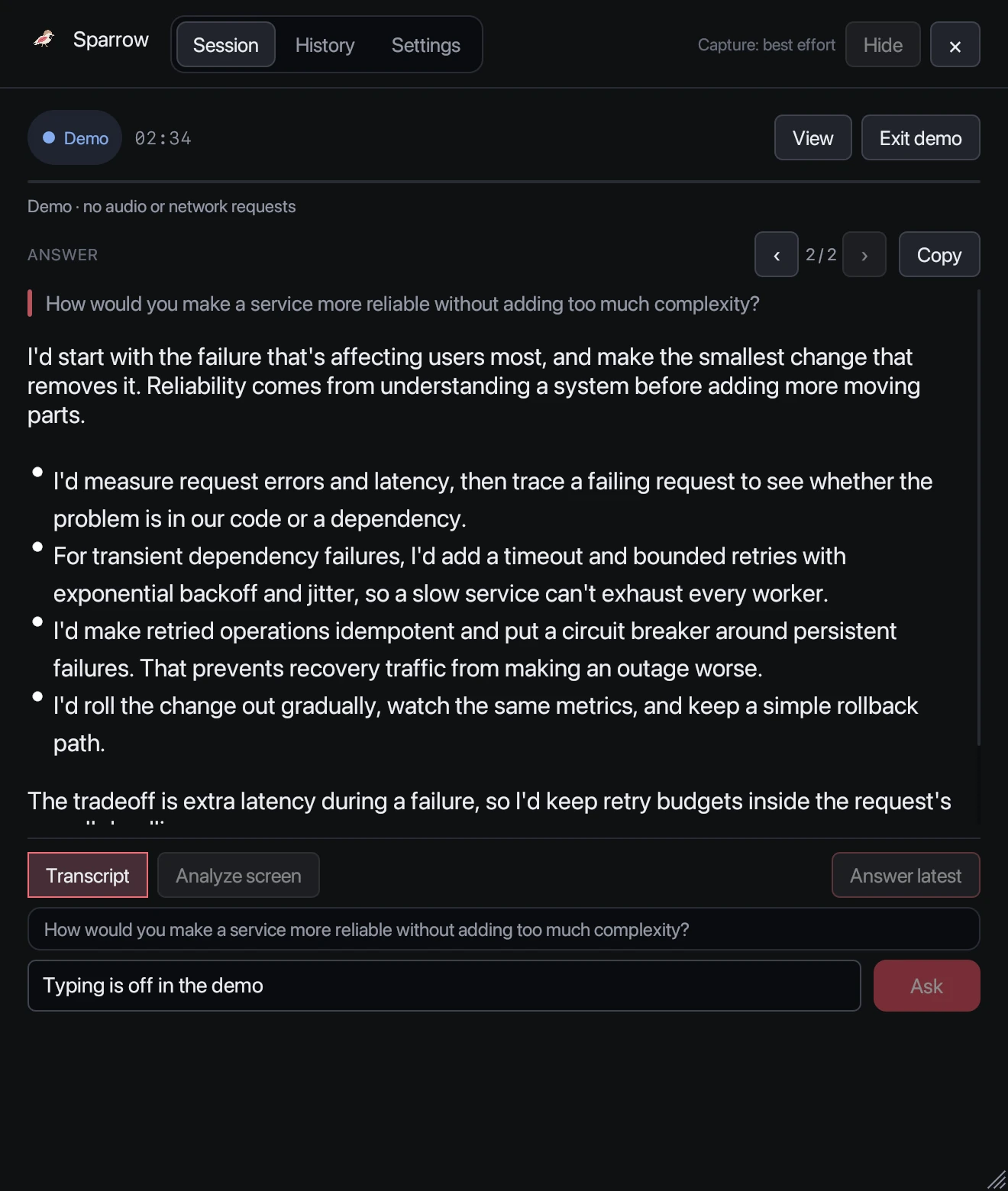
Press Transcript to check what Sparrow heard. It’s the quickest way to see whether a question was cut off before you press Answer latest.
5. Coding questions and screen analysis
Coding problems get a dedicated coding agent. You see the approach in plain words on one side and complete, highlighted code on the other, in the language you chose in Settings (Python by default, with 12 others).
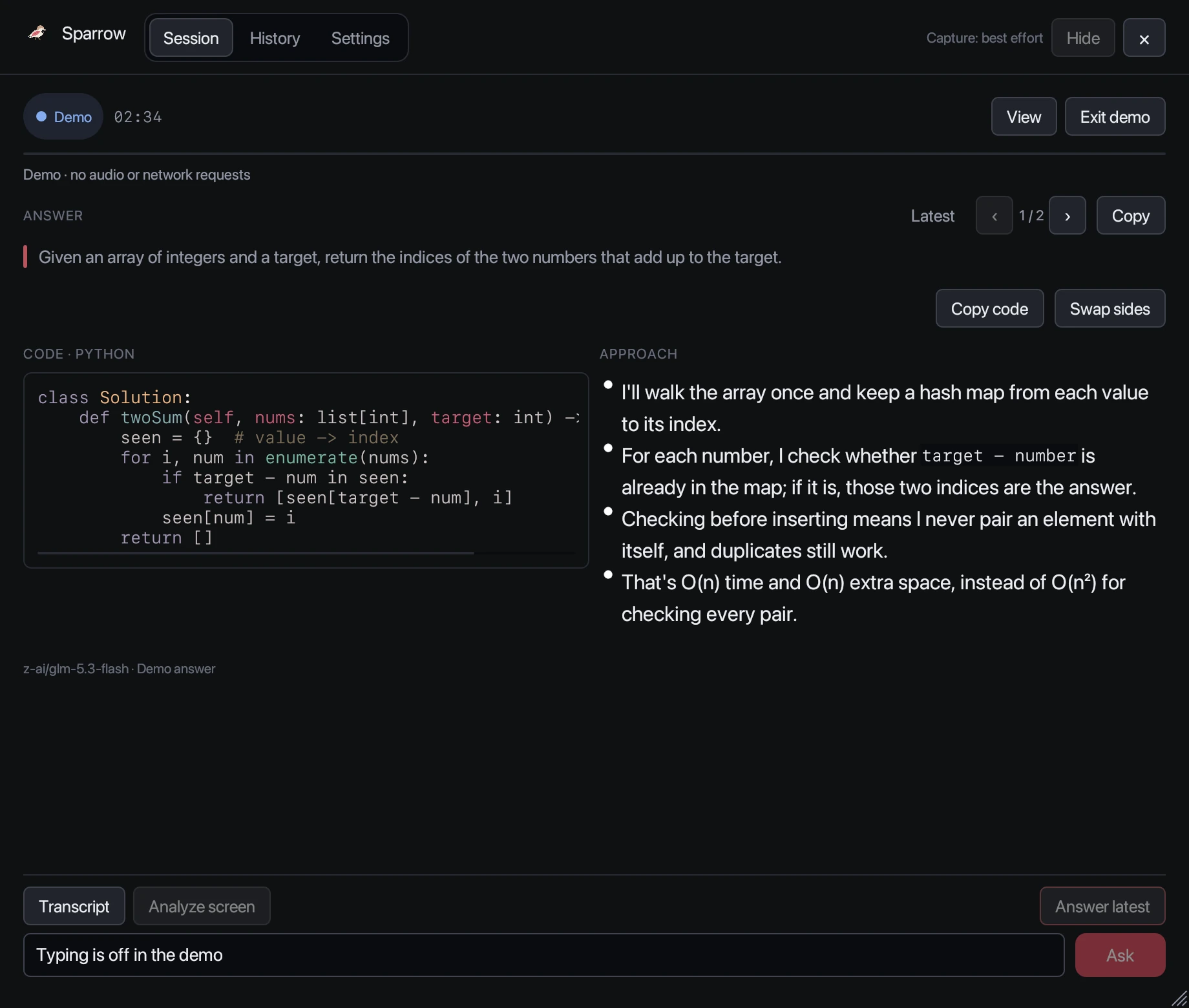
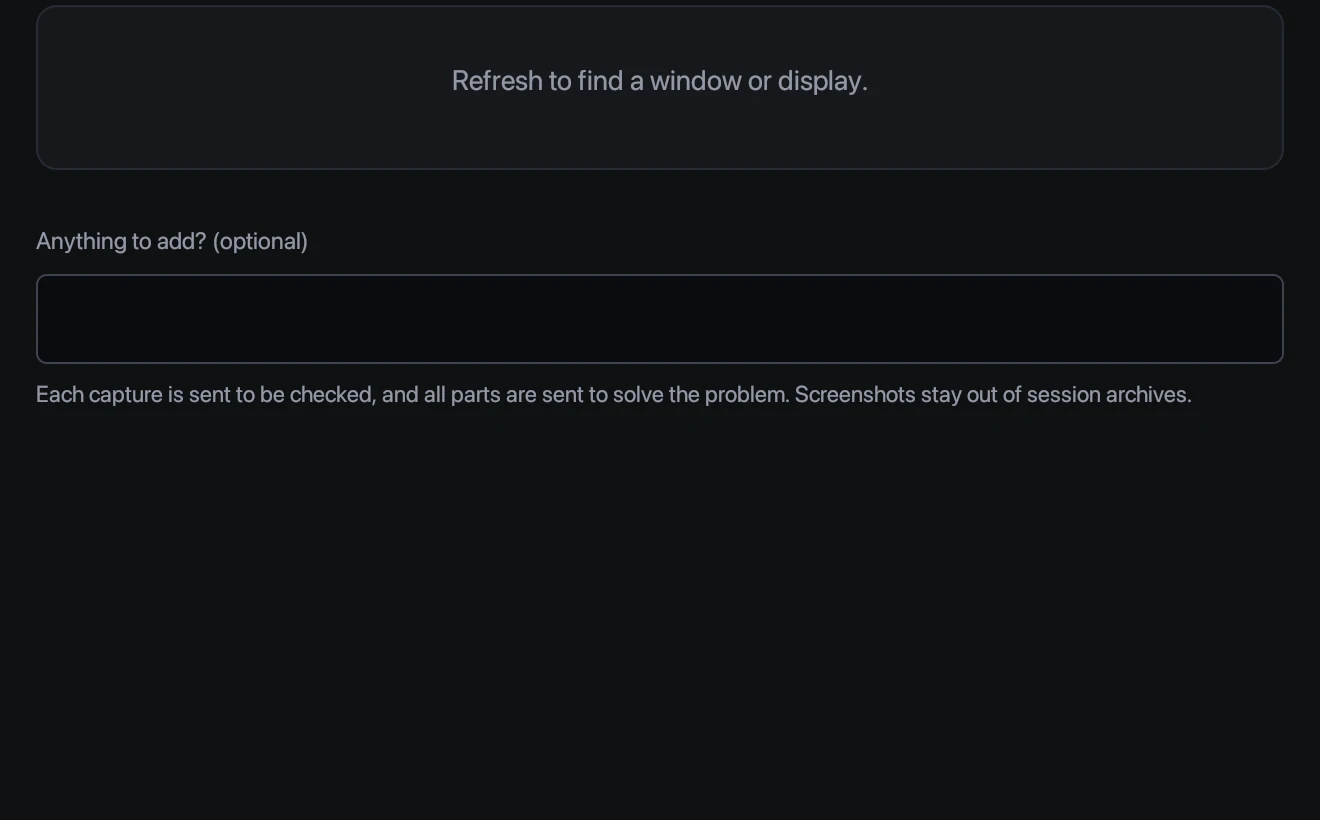
If the problem is on screen instead of spoken, press Analyze screen, choose the window that shows it and press Capture. If part of the problem is below the fold, Sparrow asks you to scroll and capture the next part, then solves it once it sees the end. Screenshots are used only to solve the problem and are never saved in your history.
6. Keep it readable and out of the way
- View in the session bar changes window opacity and answer size while you talk. Larger text is easier to read at a glance.
- Keep above other windows (Settings → Window & reading) keeps Sparrow on top of your call.
- Click-through (Cmd/Ctrl+Shift+P) lets you click the call window underneath Sparrow.
- Hide (Cmd/Ctrl+Shift+Space) removes the window while Sparrow keeps listening.
Sharing your screen? On Windows, Sparrow asks the system to leave its window out of captures. macOS doesn’t reliably support that, so share a single app window, or hide Sparrow first. Always check with the app you share from, and follow the rules of your conversation. Details are in Window, screen sharing and privacy.
7. After the call
Press End session. Time stops counting and the full report is saved to History on your computer.
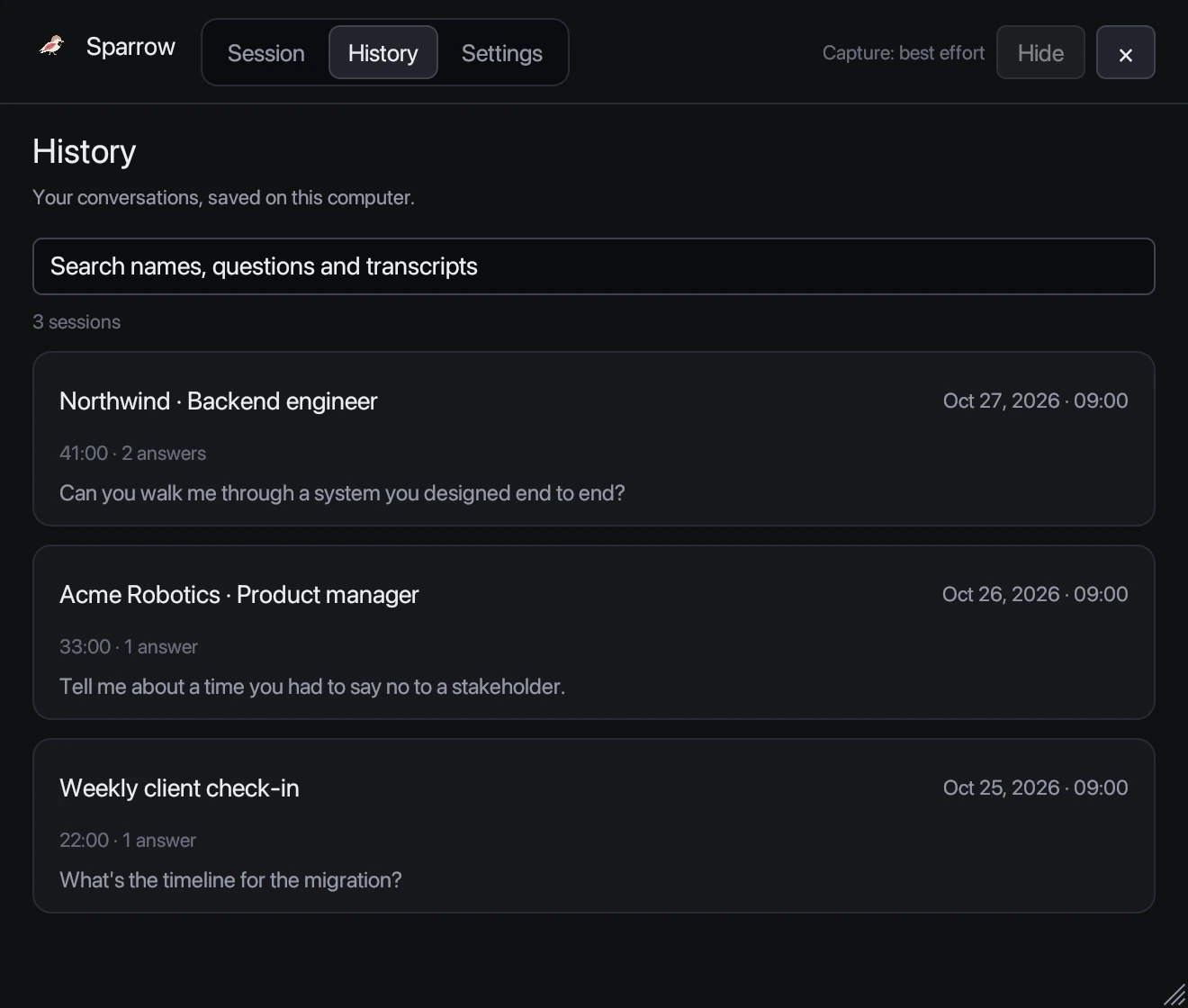
Open a session to reread every question and answer, or choose Export Markdown… to keep notes in Notion, Obsidian or Google Docs. It’s a good way to prepare for the next interview round.
Tips for better answers
- Always add your resume. It’s the difference between a generic answer and one that sounds like you.
- Do a practice run. Play a mock interview video with System audio, or ask yourself questions with Microphone.
- Use headphones with Both to avoid echo and double transcripts.
- Add standing instructions in Settings → Audio & answers, such as “keep answers under four sentences”.
- Answer in your own words. Use Sparrow’s answer as a prompt, not a script. Glance, then speak naturally.
Try it on your next call
Download Sparrow and get 20 free minutes. No account, no card, no subscription.
More help: Help center · Keyboard shortcuts · Troubleshooting