 Sparrow
Coding answers and screen analysis
Capture a coding problem from your screen, pick your language and get an approach with complete code side by side.
Coding answers
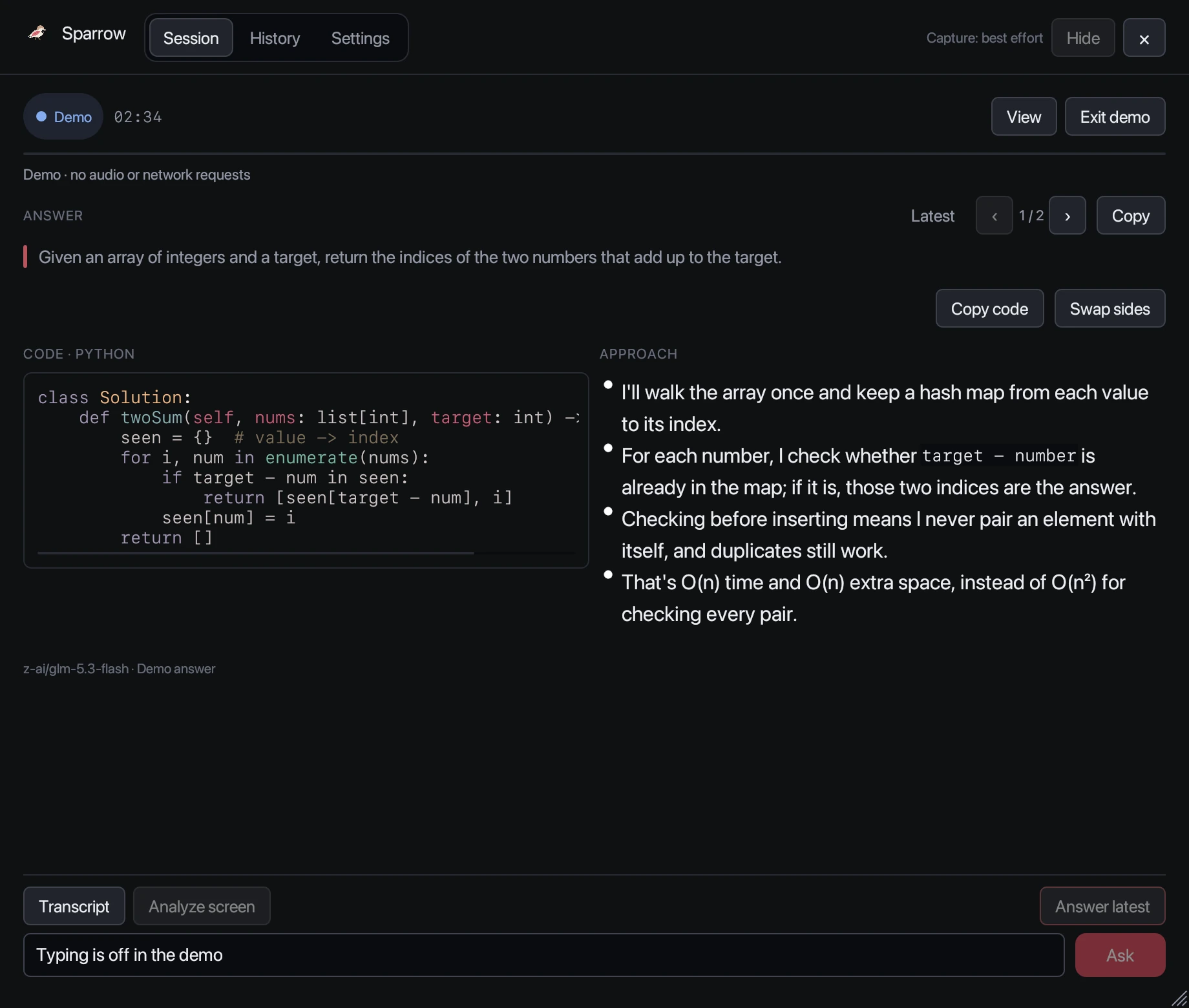
When a question is a coding problem, Sparrow hands it to a dedicated coding agent. You get two parts side by side:
- Approach: the idea in a few spoken-style sentences, including time and space complexity, so you can explain it while you type.
- Code: a complete, highlighted solution. Copy code copies only the code; Swap sides puts the code on the other side.
Coding questions are detected from speech automatically. You can also type one, for example “write a function that merges overlapping intervals”.
Choose your language
Pick a default in Settings → Coding answers → Language. If the problem’s editor clearly uses another language, Sparrow follows the editor instead. Supported languages:
Show code on the left, approach on the right sets which side the code appears on by default.
Screen analysis
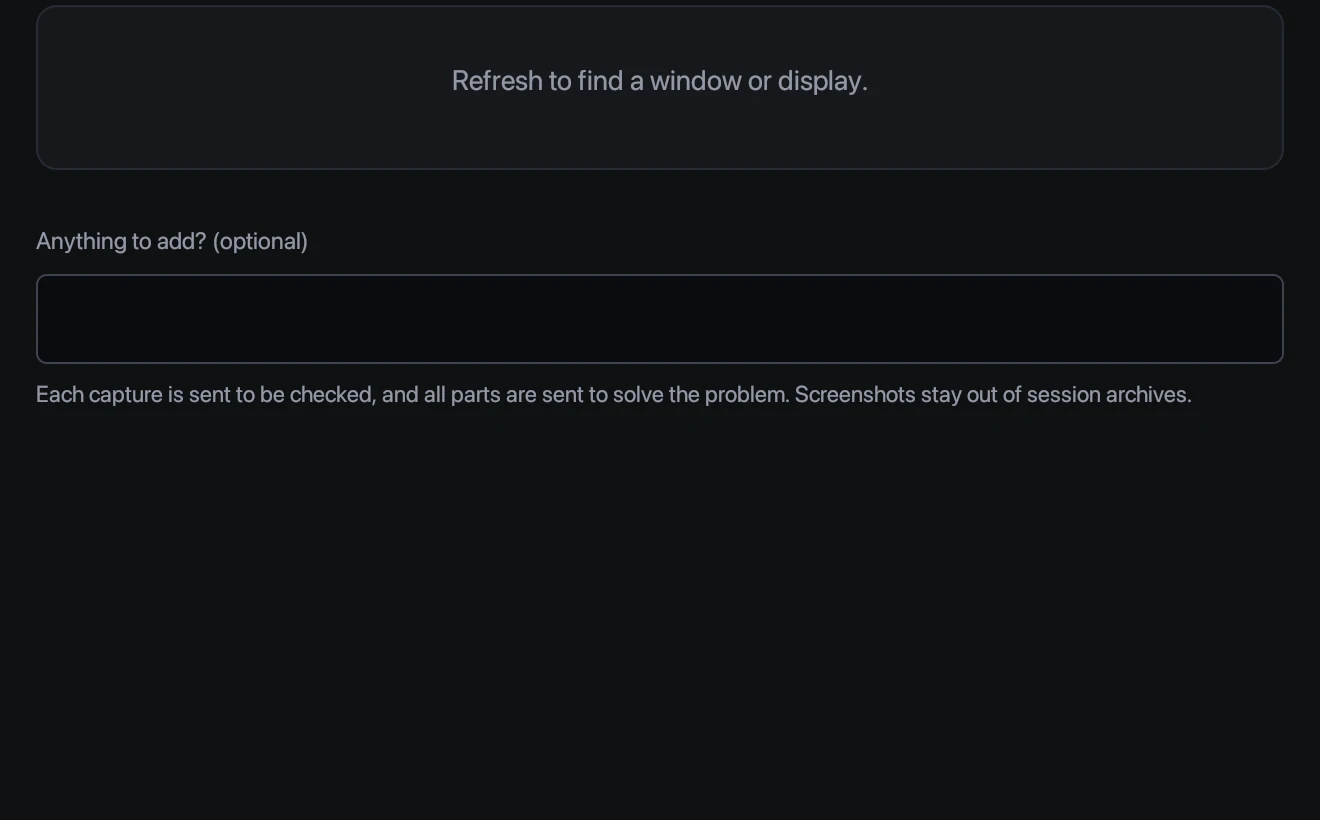
When a problem is on screen rather than read aloud, such as in a shared editor or an online assessment, use Analyze screen during a session.
- Press Analyze screen at the bottom of the session.
- Choose the window or display that shows the problem. Press Refresh if it isn’t listed.
- Optional: add a note under Anything to add?, such as “use O(1) extra space”.
- Press Capture. Sparrow checks whether the whole problem is visible.
- If the end is cut off, scroll the problem and press Capture next. Sparrow solves it as soon as it sees the end, using up to eight parts.
- Press That’s the end · Solve to solve with the parts captured so far.
- On a Mac, screen analysis uses the Screen & System Audio Recording permission. Sparrow’s own windows are left out of display captures.
- On Windows, a window capture takes the visible area of that window, so keep it uncovered while you capture.
- Screenshots are sent only to solve the problem. They’re never saved in your session history, and leaving screen analysis discards them.
- Screen analysis counts as session time, like the rest of the session.
Practising for a coding interview? Read How to use Sparrow for a full walkthrough.
Still stuck? Contact support and tell us your operating system and what you see.