 Sparrow
Getting started
Download and install Sparrow on macOS or Windows, allow audio access and run your first live session with 20 free minutes.
What you need
- Mac: Apple silicon (M1 or newer) with macOS 14 Sonoma or later.
- Windows: 64-bit Windows 10 version 2004 or later, or Windows 11.
- An internet connection. Speech recognition and answers run on Sparrow’s service.
- Any call app: Zoom, Google Meet, Microsoft Teams, Webex, Slack, or a phone call through your computer. Sparrow listens to your computer’s audio, so it doesn’t connect to the call app itself.
Install on a Mac
- Download Sparrow for macOS. You get a ZIP file.
- Open the ZIP, then drag Sparrow into your Applications folder.
- Open Sparrow from Applications.
- If macOS says it can’t verify the developer, open System Settings → Privacy & Security, scroll down and choose Open Anyway. You only need to do this once.
Install on Windows
- Download Sparrow for Windows and extract the ZIP to a folder you’ll keep, for example
Documents\Sparrow. - Open Sparrow.exe. If Microsoft Defender SmartScreen shows “Windows protected your PC”, choose More info → Run anyway.
Allow audio access
The first time you start listening, your computer asks for permission. Sparrow only hears what you choose under Listen to.
- Mac, system audio: allow Sparrow under System Settings → Privacy & Security → Screen & System Audio Recording. macOS uses this permission for call audio. Sparrow doesn’t record your screen unless you use screen analysis.
- Mac, microphone: allow Sparrow under Privacy & Security → Microphone.
- Windows: system audio needs no permission. For the microphone, check Settings → Privacy & security → Microphone and allow desktop apps.
Your first session
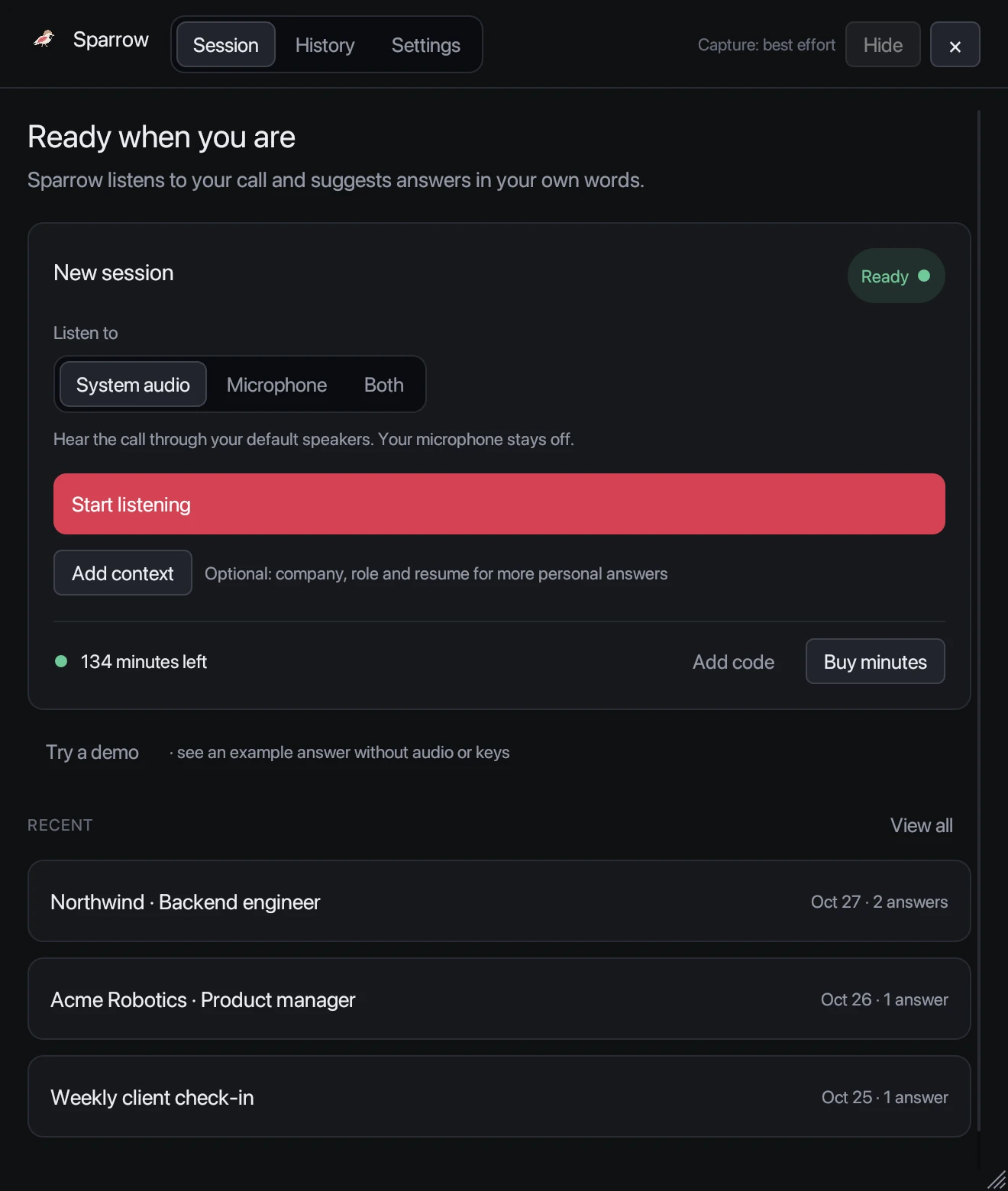
- Under Listen to, choose System audio for a video call. Choose Microphone for an in-person conversation, or Both to hear everyone. Use headphones with Both to avoid echo.
- Optional: press Add context to add the company, the job description and your resume, so answers sound like you.
- Join your call, then press Start listening. When someone asks a question, Sparrow writes an answer as they finish speaking.
- Press End session when the call is over. The transcript and answers are saved in History.
Want to see it first? Press Try a demo on the home screen. The demo shows example answers without using audio, the internet or your minutes.
Your free minutes
Each computer gets 20 free minutes the first time Sparrow connects, with every feature included. No account, email or card. Minutes are only used while a session is running. See Minutes, codes and billing.
Finding the window again
Sparrow stays out of the Dock, the taskbar, Cmd+Tab and Alt+Tab, so it doesn’t get in your way. To bring it back, press Cmd+Shift+Space on a Mac or Ctrl+Shift+Space on Windows. The same shortcut hides it again.
Still stuck? Contact support and tell us your operating system and what you see.